
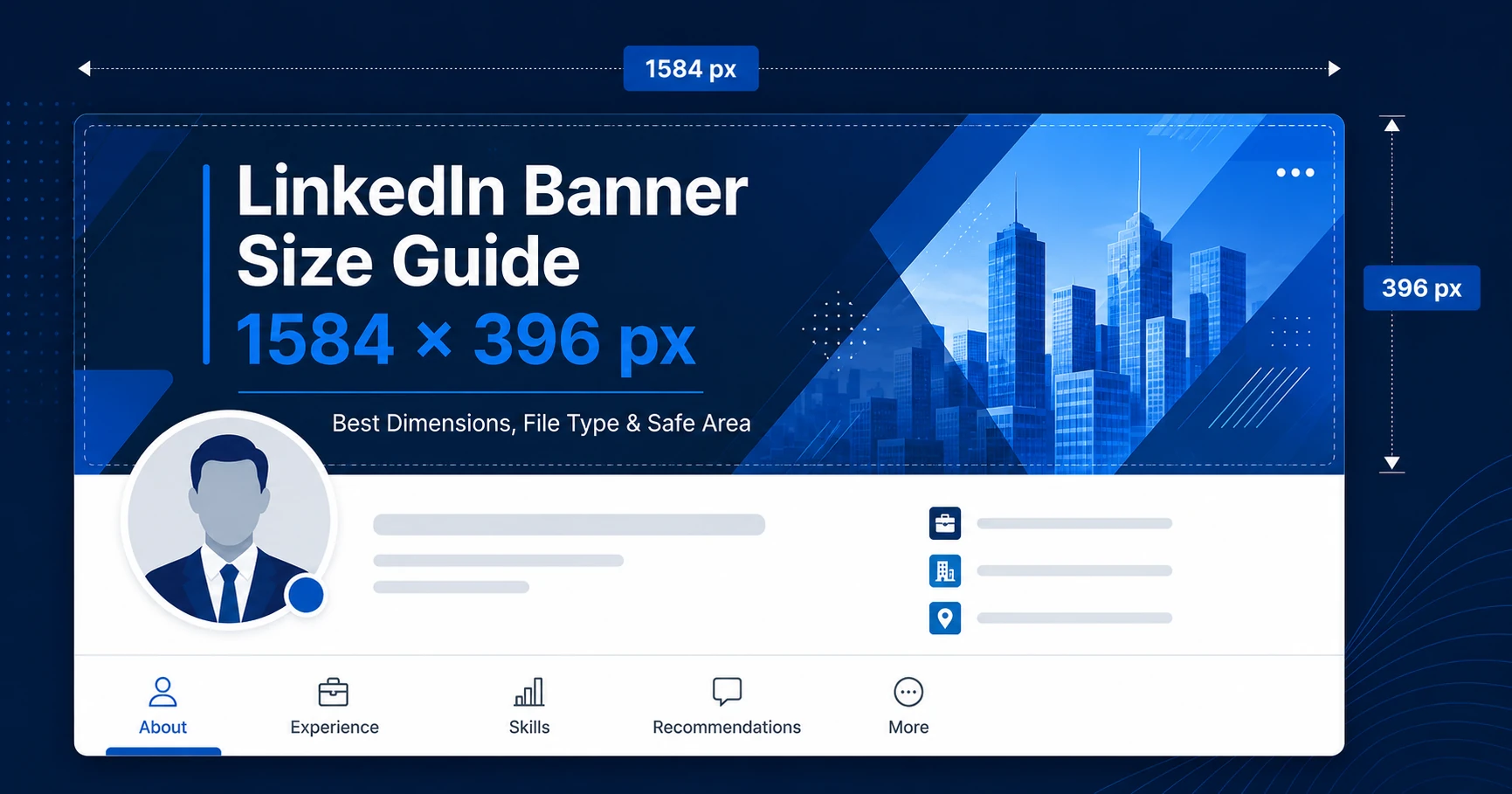
A LinkedIn banner may look like a small part of your profile, but it can make a big difference in how your profile feels. When someone opens your LinkedIn profile, your profile photo and background banner are usually the first things they notice.
A clean banner can make your profile look more complete, more professional, and more trustworthy. But if the image is the wrong size, stretched, blurry, or badly cropped, it can have the opposite effect.
That is why choosing the right LinkedIn banner size matters.
In this guide, we will cover the best LinkedIn banner dimensions, file type, safe area, upload tips, and simple ways to make your background image look sharp on desktop and mobile.
What Is the Correct LinkedIn Banner Size?
The recommended LinkedIn banner size for a personal profile is:
1584 × 396 pixels
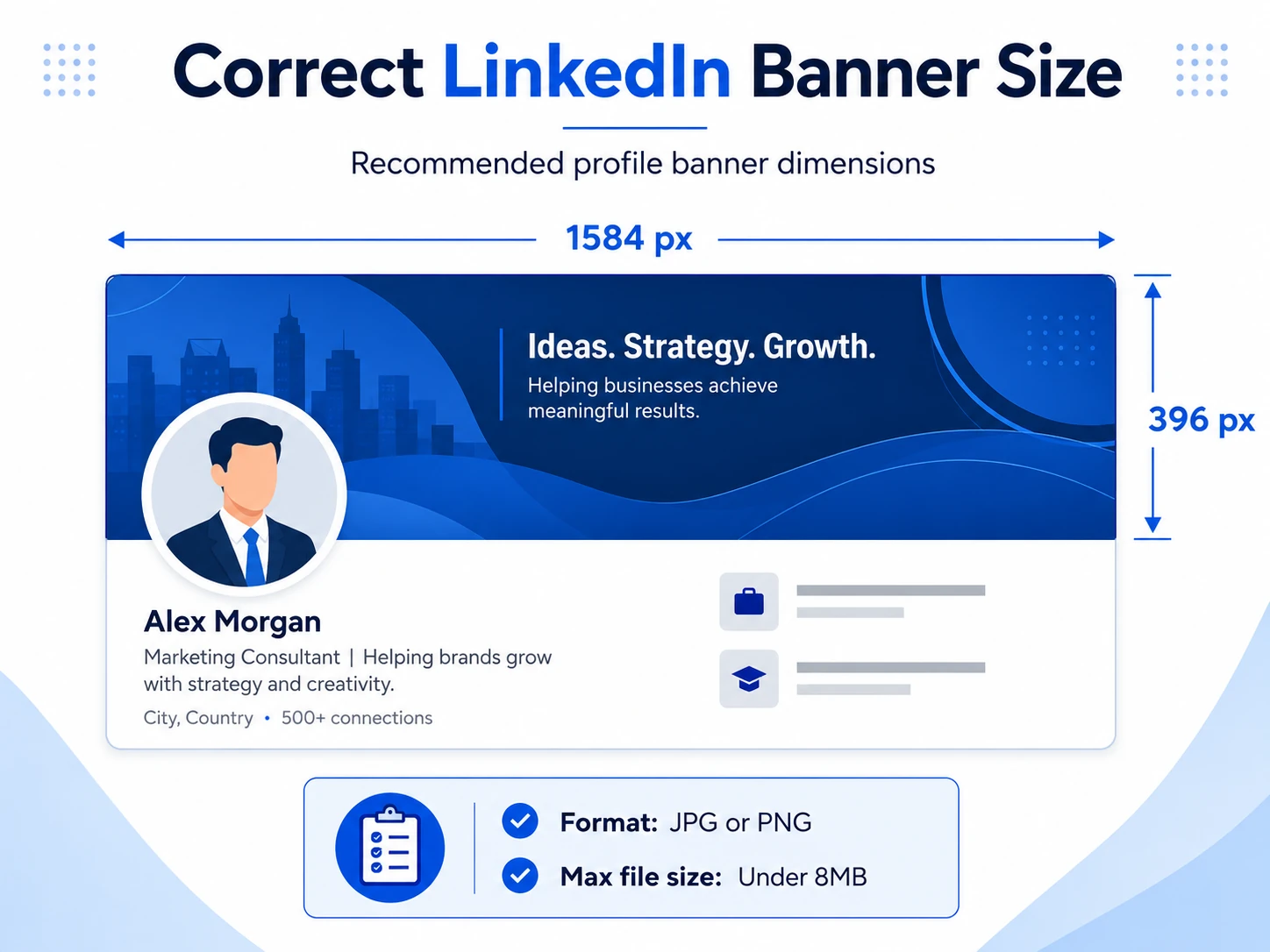
This is the size LinkedIn recommends for the cover image that appears behind your profile photo. The shape is wide and short, so a normal square or vertical image will not fit well.
The banner ratio is around 4:1, which means the image is much wider than it is tall. This is why landscape-style images work best.
A good LinkedIn banner should be designed in a wide horizontal layout. If you use a photo that was taken for Instagram, Facebook, or a phone wallpaper, LinkedIn may crop it in a way that removes important parts of the image.
Best LinkedIn Banner Dimensions
For most personal profiles, use this size:
Width: 1584 pixels Height: 396 pixels Format: JPG or PNG Maximum file size: Under 8MB
This size gives your banner enough width to look clean across the profile header. It also helps avoid poor image quality after uploading.
You can upload a larger image if it has the same wide shape, but it is usually easier to design your banner directly at 1584 × 396 pixels. That way, you can control exactly how the final banner will look.
Why the Right Size Matters
If your banner size is wrong, a few things can happen.
Your image may look blurry. Important details may get cropped. Text may be hidden behind your profile photo. The banner may look good on desktop but strange on mobile. In some cases, the image may look stretched or zoomed in.
This is common when people upload random photos without resizing them first.
For example, a city skyline photo may look great on your computer, but after uploading it to LinkedIn, the top or bottom may be cut off. A quote image may look fine in preview, but the words may become too small or may get covered by the profile picture.
Using the correct dimensions helps you avoid these problems from the start.
What Is the LinkedIn Banner Safe Area?
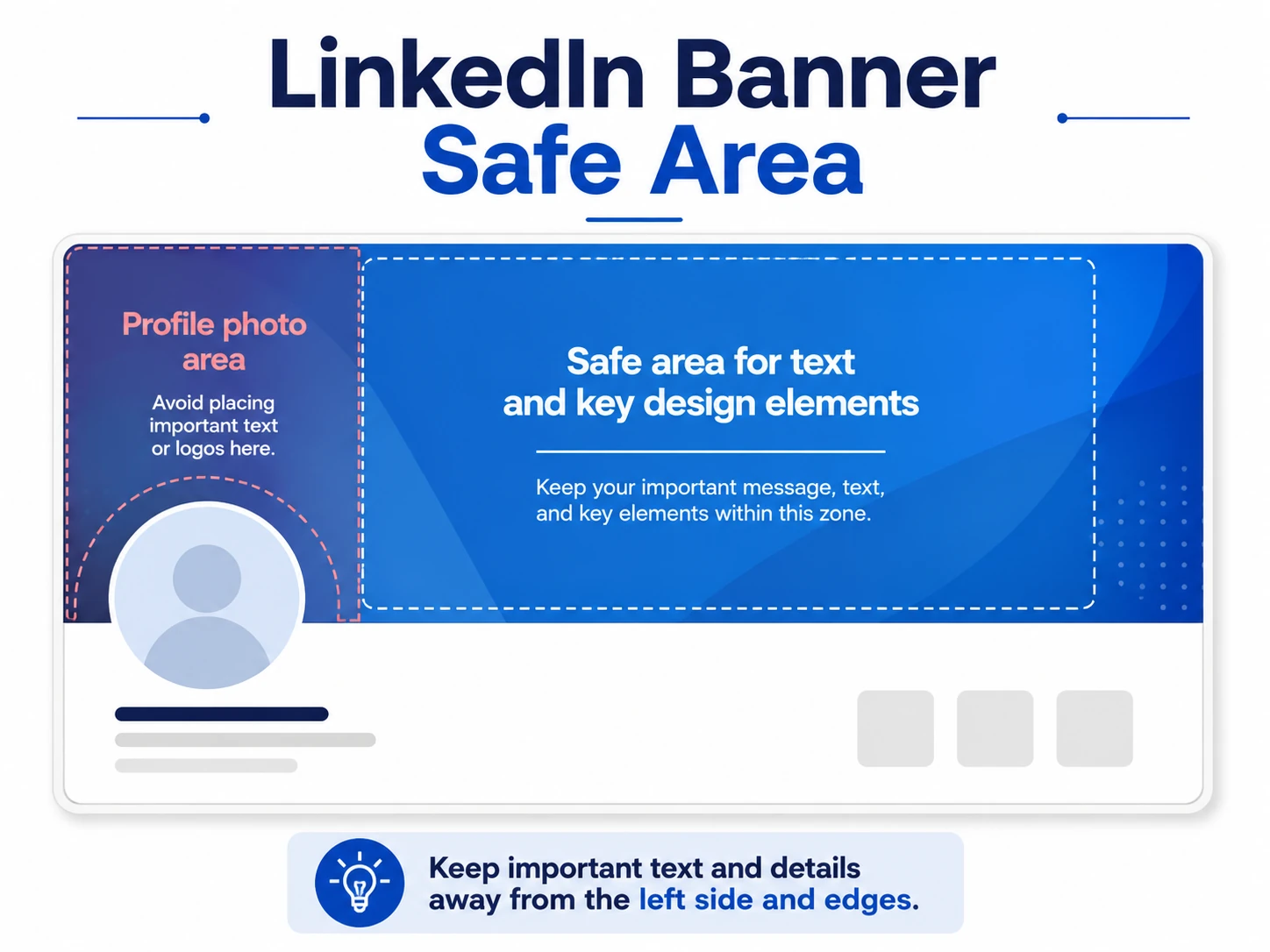
The safe area is the part of your banner where important design elements should stay visible.
LinkedIn shows your banner differently on desktop, laptop, tablet, and mobile screens. Your profile photo also covers part of the banner, especially on the left side.
Because of this, you should not place important text, logos, faces, or main design details too close to the edges or directly behind the profile photo area.
A safe rule is this:
Keep the most important part of your banner in the middle and right side of the image.
The left side should stay clean and simple because your profile photo appears there. You can still use colors, patterns, or background design on the left, but avoid placing important words or details there.
Should You Add Text to a LinkedIn Banner?
You can add text to your LinkedIn banner, but you should keep it simple.
A short line can work well if it adds value. For example:
- Digital Marketing Consultant
- Helping Businesses Grow Online
- Software Developer | SaaS | Cloud
- Real Estate Advisor
But avoid adding too much text. A banner is not a full advertisement. It should support your profile, not make it feel crowded.
If you do use text, keep it large, clear, and away from the profile photo area. Small text often becomes hard to read, especially on mobile.
For many people, a textless banner works better. A clean abstract, business, nature, city, or technology background can make the profile look polished without saying too much.
Best File Type for LinkedIn Banners
LinkedIn supports JPG and PNG files for profile banners.
For most users, JPG is a good choice because it keeps the file size smaller and works well for photos, backgrounds, and realistic images.
PNG can be better if your banner has sharp graphics, icons, lines, shapes, or text. PNG usually keeps edges cleaner, but the file size can be larger.
Both formats can work well. The main thing is to upload a clean, high-quality image that is not too small.
If your banner has no text and is more photo-based, JPG is usually fine. If your banner has text, logos, or graphic design elements, PNG may give a cleaner result.
Why Does My LinkedIn Banner Look Blurry?
A blurry LinkedIn banner usually happens for one of these reasons:
- The image is too small.
- The image was stretched to fit the banner size.
- The file was compressed too much.
- The original image quality was low.
- The banner had tiny text or small details.
- The image was uploaded in the wrong shape.
To avoid this, start with a proper 1584 × 396 pixel banner. Do not take a small image and stretch it larger. Also, avoid screenshots because they often lose quality when uploaded.
If you are using a design tool, export the final banner in high quality. Then check it on both desktop and mobile after uploading.
Desktop vs Mobile Cropping
Your LinkedIn banner may not appear exactly the same on every device.
On desktop, the banner is wider and gives more space. On mobile, LinkedIn may crop or reposition parts of the image. This is why it is better to keep your design simple.
Avoid putting important words near the far left, far right, top edge, or bottom edge.
A good banner should still look fine even if a little bit is cropped. Background patterns, soft gradients, office images, abstract graphics, buildings, nature scenes, and technology-style images usually work well because they do not depend on one exact crop.
Best LinkedIn Banner Design Tips
Here are a few simple tips to make your banner look better:
- Use a clean image that matches your profession or personal brand.
- Keep the design simple and easy to understand.
- Avoid too many colors.
- Do not use tiny text.
- Leave the left side cleaner because of the profile photo.
- Use high-quality images only.
- Make sure the banner does not look too busy.
- Choose a style that matches your profile photo and headline.
Your LinkedIn banner should not fight for attention. It should make your profile look more complete and professional.
Good Banner Ideas for Different Profiles
If you are not sure what type of banner to use, choose one based on your work or personality.
For business professionals, office buildings, clean corporate designs, and dark blue backgrounds can work well.
For technology professionals, digital lines, coding-inspired graphics, AI-style backgrounds, or modern abstract designs can fit nicely.
For job seekers, simple professional backgrounds are usually best. Avoid anything too loud or distracting.
For real estate professionals, buildings, city views, and modern property images can make sense.
For creative professionals, abstract graphics, soft colors, or modern design patterns can help the profile feel more unique.
For people who want a calm and clean profile, nature banners can work well without looking too casual.
Where to Download Free LinkedIn Banners
You do not always need to design a banner from scratch. You can use a ready-made LinkedIn background banner if it already has the correct size and professional look.
On LinkedIn Background Banner, you can download free banners for different styles and profile types, including abstract, graphic, business, nature, technology, urban, quote, and building-style backgrounds.
You can start with these collections:
- Free abstract and graphic LinkedIn banners
- Professional building LinkedIn banners
- Cool LinkedIn banners for modern profiles
Choose the banner that best matches your profile, download it, and upload it to LinkedIn.
How to Upload Your LinkedIn Banner
To add or change your LinkedIn banner:
- Go to your LinkedIn profile.
- Click the pencil/edit icon on your background banner area.
- Upload your image.
- Adjust the position if needed.
- Save the changes.
- Check your profile on desktop and mobile.
After uploading, take a quick look at your profile as a visitor would see it. Make sure your banner is clear, not blurry, and not hiding important parts behind your profile photo.
Quick LinkedIn Banner Checklist
Before you upload your banner, check these things:
- Is the image 1584 × 396 pixels?
- Is the file JPG or PNG?
- Is the file under 8MB?
- Is the left side clean enough for your profile photo?
- Is the text large and readable, if you added any?
- Does the design look professional?
- Does it still look good on mobile?
If the answer is yes, your banner is ready to upload.
FAQ About LinkedIn Banner Size
Here are quick answers to common questions about LinkedIn banner size, file type, safe area, and image quality.
What is the best size for a LinkedIn banner?
The best size for a LinkedIn personal profile banner is 1584 × 396 pixels. This is the recommended size for the background image behind your profile photo.
Can I use a larger image for my LinkedIn banner?
Yes, but it should still follow the same wide banner shape. If the image is too tall or too narrow, LinkedIn may crop it in a way that does not look good.
What file type should I use for a LinkedIn banner?
JPG and PNG are both good options. JPG works well for photos and backgrounds. PNG is better for banners with text, graphics, or sharp design elements.
Why is my LinkedIn banner blurry?
Your banner may look blurry if the image is too small, stretched, heavily compressed, or not designed in the correct size. Use a high-quality 1584 × 396 pixel image for better results.
Should my LinkedIn banner have text?
It can, but it does not have to. If you add text, keep it short, clear, and easy to read. Many professional profiles look better with a clean textless banner.
Where should I place text on a LinkedIn banner?
The center and right side are usually safer. Avoid placing important text on the left side because your profile photo may cover it.
Final Thoughts
Your LinkedIn banner does not need to be complicated. It just needs to be the right size, clear, and suitable for your profile.
The recommended size is 1584 × 396 pixels, and the best formats are JPG or PNG. Keep the design clean, avoid small text, and leave enough space around the profile photo area.
A good banner can make your LinkedIn profile look more polished in just a few minutes. Whether you choose a business background, abstract design, building image, technology banner, or simple clean style, make sure it supports the professional image you want people to see.
If you want a ready-made option, you can browse free LinkedIn background banners and choose one that fits your profile.